 BRIDGE1

Ornith 1.5 9B makes the distinction concrete. The catalog lists ornith-1-5-9b-optiq-4bit, MLX OptiQ four-bit, with Vision No, 229,376 tokens and 55.0 GB estimated memory. It lists ornith-1-5-9b-q4-k-m-gguf, GGUF Q4_K_M, with Vision Yes, 262,144 tokens and 17.0 GB estimated memory. Those windows and estimates are for the 64 GB M1 Max reference. Choose by the exact row and read the matching guide section before copying client settings; the shared model name does not erase the image-support difference.
The catalog also lists Vision Yes for the offered Ornith 1.5 35B-A3B MLX OptiQ and GGUF Q4_K_M profiles. Those labels identify image capability; they do not supply a task pass for a screenshot in every client. Keep capability and observed outcome separate. A model can be eligible for image input while its response to your particular diagram, code screenshot or cropped interface still needs checking.
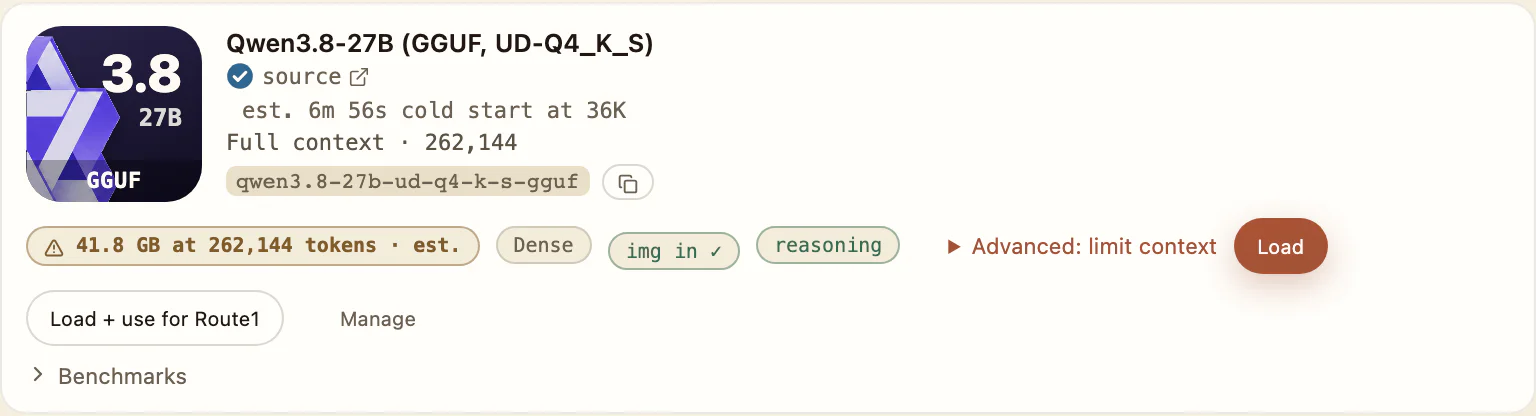
Swipe to see the whole row
The catalog row carries an image-input badge beside the reasoning badge.
The image-capable light-task choices also differ. Qwen3.5 4B MLX four-bit, qwen3-5-4b-4bit, lists Vision Yes and 131,072 tokens at 43.7 GB estimated memory. Qwen3.5 2B MLX four-bit, qwen3-5-2b-4bit, lists Vision Yes and 262,144 tokens at 13.7 GB estimated memory. Both figures describe the 64 GB M1 Max reference and both profiles retain light-task scope. Gemma 4 26B-A4B MLX QAT lists Vision Yes and 262,144 tokens. In the October 9–10, 2026 Python two-turn fixture on M1 Max 64 GB, Codex failed at turn 1 and OpenCode at turn 2 (n=1 per client). An image does not remove those coding limits.
The same care applies across formats. MLX and GGUF describe offered profile choices; neither word by itself establishes image support. Check the row each time you change a precision or engine. If an image can be accepted but the later file task fails, investigate that later capability separately. A response, an actionable request and a correct edit are different outcomes.
The OpenCode setup guide says to keep the generated attachment and modalities fields when present. These fields describe the input types for the selected model entry. Preserve the generated provider entry instead of reducing it to a URL and key copied from another example. Use the exact model choice supplied by Gateway, including bridge1/route1 when you want to follow the Bridge1 selection.
After onboarding another model, revisit the generated configuration rather than assuming an earlier example describes the new profile. The visible ability to attach a file is a client behavior, while the model’s vision label describes the selected profile. Check both sides. If a screenshot task matters, inspect the provider and model selection as well as the attachment. A correctly copied endpoint alone cannot tell you which input types the selected entry offers.
For Pi.dev, preserve the supplied input, contextWindow and maxTokens fields when present. The guide says input is omitted for models without vision, so do not add image input to a text-only profile by borrowing another model entry. Copy the JSON again after onboarding another model. Pi.dev has early support covering one short smoke-test turn; configuration fields do not establish a broader image or coding-task result.
Hermes Agent has a separate material caveat: without supports_vision in the generated endpoint configuration, it sends a text description instead of the image. Keep the supplied supports_vision and context_length values and merge the YAML under your configured endpoint as the guide describes. Copying the YAML alone does not finish setup. Hermes also has one-turn smoke-test coverage, so retain that limit even when the image-related fields are present.
If the client substitutes a description, the model may still answer a question about the screenshot’s subject. That answer can be useful, but it supports a text-input result. It does not demonstrate that the selected model inspected the original picture. Do not use fluency, plausible visual vocabulary or agreement with a caption as proof of image delivery. The distinction becomes especially important when small layout details determine whether the answer is correct.
A controlled check should ask about visible information that you can verify directly. Use a non-sensitive image with a simple feature and a clear expected answer, rather than a private application screen. Avoid putting the answer into the accompanying prompt. This is a proposed trial, not a supplied capture or an observed image pass. Keep a text-description attempt separate from an attempt made through the documented image configuration.
Begin with an image-reading question, then inspect the response against the actual picture. Record the selected profile and client with the result. If you later ask for a file edit based on that interpretation, treat the edit as another check. A correct description can lead to a wrong change, and a correct change can sometimes be made from the text prompt without using the picture at all.
Use a disposable fictional project for the editing stage and inspect both the changed file and its relevant test. Keep the screenshot, request and acceptance condition stable if you compare attempts. If you change the crop or add a detailed description, say what changed before drawing a conclusion. Otherwise, a better second answer may reflect the new text rather than a working image-input path. The verification article gives the broader task-check sequence.
A screenshot is helpful when the question depends on visual arrangement, a diagram or information that is awkward to describe accurately. For a short code fragment, readable text may let you inspect the question and answer more directly. Choose the input that preserves what the model needs to know. Do not turn a failed image attempt into a guessed diagnosis about the runtime; start with the profile and the documented client capability fields.
The requirements page publishes a 24 GB minimum on Apple Silicon and recommends 32 GB or more. Those are support thresholds, not measurements of every model on those Macs; check the window offered on your own machine. A profile’s reference window on the 64 GB M1 Max does not establish the image workload that fits on a 24 GB or 32 GB Mac. Use the window actually offered for your selected profile. If your task includes sustained file work, check task evidence as well as Vision Yes; a short image response cannot establish a complete conversation at the catalog maximum.
When checking an image response, inspect the actual attached material and the question together. A crop can remove the detail that made the question answerable; a prompt can also reveal enough information to answer without the picture. Keep those possibilities separate from the selected profile’s image capability. If you need to revise the crop or question, describe the next attempt as a changed input rather than treating the new answer as a direct repeat.
For a layout question, define a visible relation you can verify yourself, such as which object sits above another. For a text-reading question, compare the reply with the readable text in the supplied image. These are proposed checks, not observed results or a claim about accuracy. Avoid using a subjective impression of how convincing the response sounds as the acceptance condition. A concrete visible fact makes it easier to identify an incorrect answer.
If the image interpretation is wrong, stop before asking for downstream edits based on it. If interpretation is correct but the coding task fails, keep the two outcomes distinct. The model’s ability to receive an image does not establish reliable interpretation of every picture, and correct interpretation does not establish file-editing success. Use the matching client guide to check the input path, then the model guide and tool-calling article to choose an appropriate next task.